Welcome to the Auth Guide
This guide explains how to protect your account with multi-factor authentication (MFA), why some types of MFA are much stronger than others, and how to set up the method your organisation has asked you to use.
If you already know what you need, jump straight to Get started. Otherwise, read on.
What is MFA, and why does it matter?
A password on its own is a single secret. If someone guesses it, finds it in a data breach, or tricks you into typing it on a fake sign-in page, they have your account.
Multi-factor authentication adds a second check, so a stolen password is not enough on its own. That second check comes from a different kind of evidence:
- Something you know - a password or PIN
- Something you have - your phone, or a security key in your pocket
- Something you are - your fingerprint or face
MFA blocks the overwhelming majority of everyday account attacks: password spraying, credential stuffing and reused passwords all stop working when a second factor is required.
But not all MFA is the same
"MFA is turned on" does not mean "we are safe". Some methods are easy for an attacker to intercept or to trick you into approving. Here is roughly how the options rank, weakest first.
| Method | Strength | Main weakness |
|---|---|---|
| SMS or voice call code | ⚠️ Weak | Codes can be SIM-swapped, intercepted, or phished on a fake sign-in page |
| App code (TOTP, 6 digits) | ⚠️ Better | Still a code you can be tricked into typing into a fake site |
| Simple "Approve" push | ⚠️ Better | MFA fatigue - people tap approve to make the prompts stop |
| Number matching push | ✅ Good | Stops accidental approval, but a convincing fake site can still relay the prompt |
| Passkeys and FIDO2 security keys | ⭐ Strongest | Phishing-resistant by design - the credential only works on the real site |
The short version
Get started
Choose the method your organisation has asked you to set up.
More help
Settings for your specific device, and what to do when something changes.
Compare your options
Choose a method that suits you.
The table below shows how each option compares for everyday sign-in security, convenience and what happens if you get a new phone or computer.
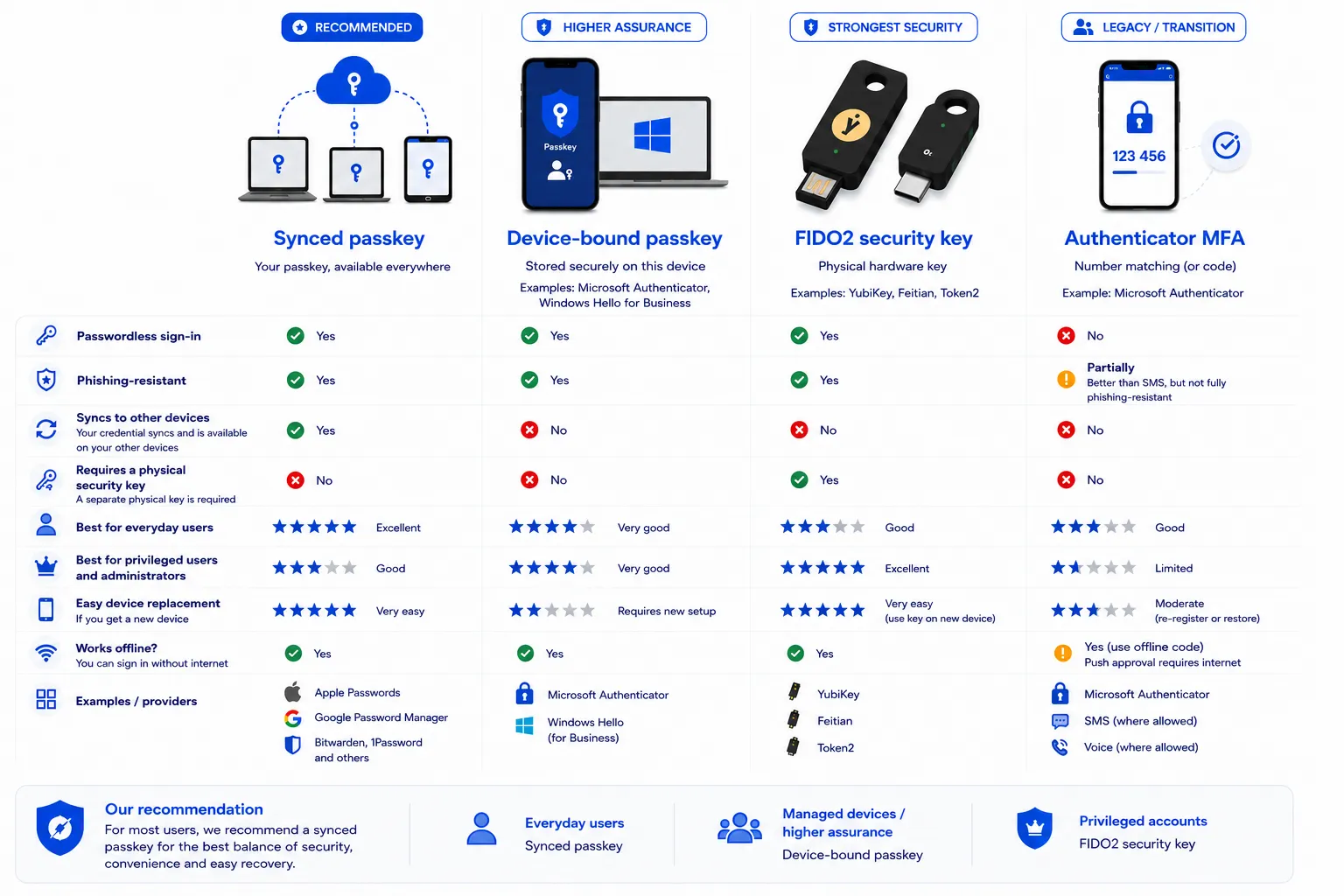
| Feature | Synced Passkey | Device-Bound Passkey | FIDO2 Security Key | Authenticator MFA |
|---|---|---|---|---|
| Passwordless sign-in | ✅ Yes | ✅ Yes | ✅ Yes | ❌ No |
| Phishing-resistant | ✅ Yes | ✅ Yes | ✅ Yes | ⚠️ Partially - better than SMS, but not fully phishing-resistant |
| Syncs to other devices | ✅ Yes | ❌ No | ❌ No | ❌ No |
| Requires a physical security key | ❌ No | ❌ No | ✅ Yes | ❌ No |
| Best for everyday users | ⭐⭐⭐⭐⭐ (5 out of 5) Excellent | ⭐⭐⭐⭐ (4 out of 5) Very good | ⭐⭐⭐ (3 out of 5) Good | ⭐⭐⭐ (3 out of 5) Good |
| Best for privileged users and administrators | ⭐⭐⭐ (3 out of 5) Good | ⭐⭐⭐⭐ (4 out of 5) Very good | ⭐⭐⭐⭐⭐ (5 out of 5) Excellent | ⭐⭐ (2 out of 5) Limited |
| Easy device replacement | ⭐⭐⭐⭐⭐ (5 out of 5) Very easy | ⭐⭐ (2 out of 5) Requires new setup | ⭐⭐⭐⭐⭐ (5 out of 5) Very easy - use key on new device | ⭐⭐⭐ (3 out of 5) Moderate - re-register or restore |
| Works offline | ✅ Yes | ✅ Yes | ✅ Yes | ⚠️ Yes, using an offline code - push approval requires internet |
| Examples / providers | Apple Passwords, Google Password Manager, Bitwarden, 1Password and others | Microsoft Authenticator, Windows Hello (for Business) | YubiKey, Feitian, Token2 | Microsoft Authenticator, SMS (where allowed), Voice (where allowed) |
Our recommendation
Everyday users
✅ A synced passkey (with a dedicated passkey manager)
Why are we recommending synced passkeys?
- Faster sign-in
- More secure than a password
- No passwords to remember
- Protected against phishing
- Microsoft's recommended sign-in method
The setup flow currently available on this site uses Microsoft Authenticator and creates a device-bound passkey. Synced passkey setup walkthroughs for other passkey managers are coming soon.
Privileged users (IT administrators)
✅ A FIDO2 security key
Why are we recommending security keys for administrators?
- Never leaves your possession, unlike a synced passkey stored in the cloud
- Portable between devices without needing to sign in to a passkey manager
- A strong choice for accounts with elevated access
A device-bound passkey (such as Windows Hello for Business) can also be a good choice for some admin tasks, particularly on a managed device you always use.
Transitional deployments
✅ Microsoft Authenticator MFA
Why might we recommend MFA instead?
- Useful while a passkey or security key rollout is still in progress
- Still far stronger than a text-message code
- A reasonable stepping stone towards passwordless sign-in
Which one should I choose?
- Everyday employee: ⭐ Synced Passkey
- IT administrator: ⭐ FIDO2 Security Key
- Shared device: ⭐ Device-Bound Passkey
- Privileged access workstation: ⭐ Device-Bound Passkey or FIDO2 Security Key
Not sure which to choose?
Privacy